Developers/Ecosystem & resources
CardV for Dujiao-Next
Add CardV as a supplier inside your Dujiao-Next shop. You import CardV gift cards and game top-ups as your own products and set your own prices. When a buyer pays, your shop buys the item from CardV with your CardV balance, and the code appears on the buyer's order page automatically.
#What you need
| Dujiao-Next | v1.5.0 or later, with the upstream connection feature (Integration menu) |
| CardV account | An approved merchant account with API access enabled |
| API key | A signed API key from the Merchant Portal (Key ID + signing secret) |
| Balance | Prepaid CardV balance in USD. Every order your shop places is paid from it |
To your buyers, you are the seller: you set the prices, answer their questions and handle their refunds.
#Step 1: Get your API key
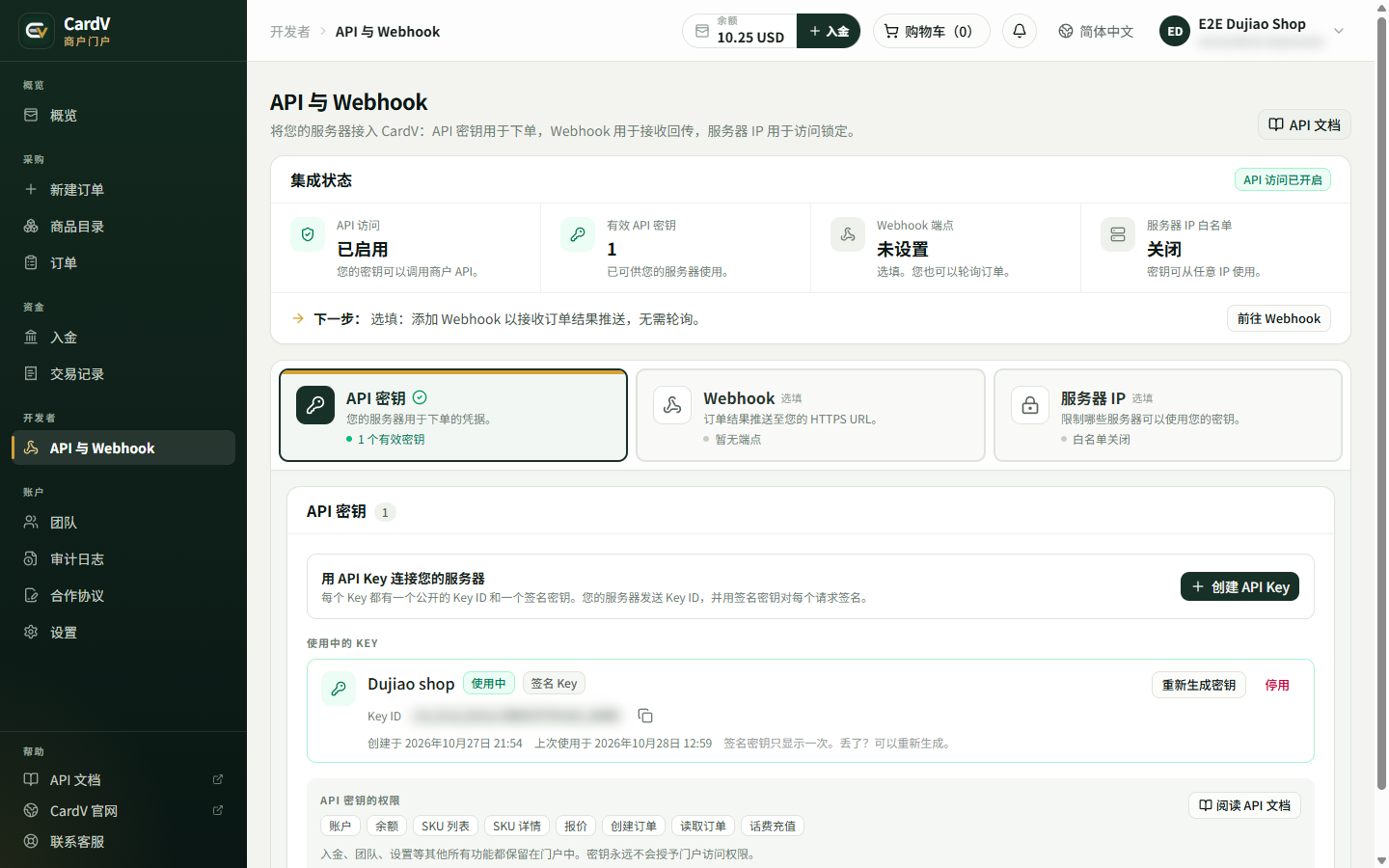
Use the API key you already have in the Merchant Portal under API & Webhooks > API keys. You don't need a separate key for Dujiao-Next.
- Key ID starts with
ck_live_. - Signing secret starts with
cs_live_. It is shown only once, when the key is created. If you no longer have it, use Regenerate secret on the key. The Key ID stays the same, and the old secret stops working right away.
Older keys without a Key ID can't be used. Create a new key in the Portal instead.
#Step 2: Add the connection
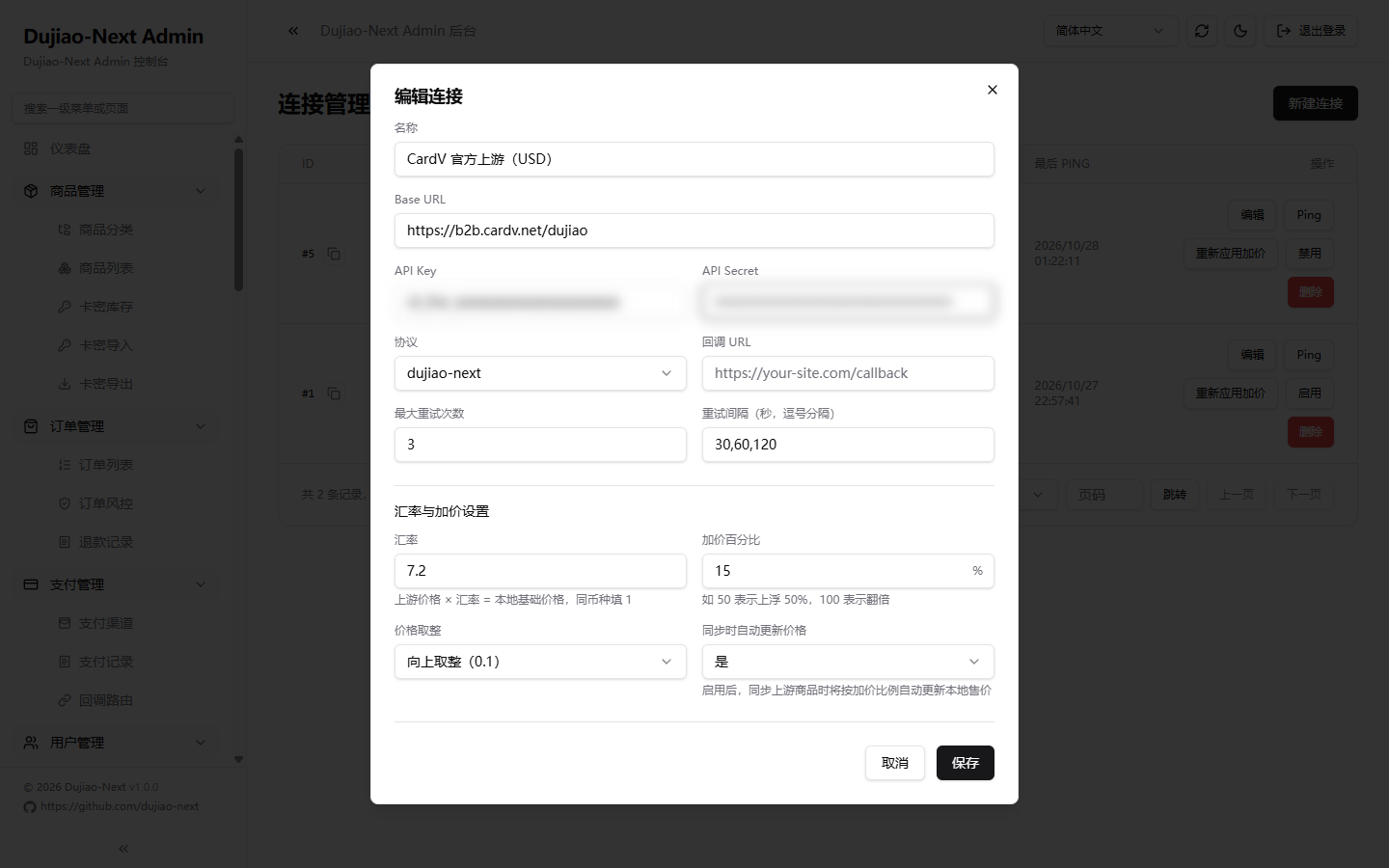
In the Dujiao-Next admin, open Integration > Connection Management > New Connection and fill in the form:
| Field | What to enter | Why |
|---|---|---|
| Name | For example CardV (USD) | Only you see it. Including the currency avoids confusion later |
| Base URL | https://b2b.cardv.net/dujiao | Include /dujiao and nothing after it, with no trailing slash |
| API Key | Your Key ID (ck_live_…) | |
| API Secret | Your signing secret (cs_live_…) | When you edit the connection later, leave it empty to keep the saved secret |
| Protocol | dujiao-next | |
| Callback URL | Leave empty | CardV doesn't send callbacks. Your shop checks each order for the result (see How delivery works) |
| Max Retries / Retry Intervals | Keep the defaults (3 / 30,60,120) | Retries apply only to temporary errors |
| Exchange Rate | A fixed number you type in yourself: today's real rate from USD to your shop currency, set slightly above it as a buffer. Use 1 if your shop sells in USD | CardV prices are always in USD. Dujiao-Next doesn't fetch live rates, and CardV can't set this for you. The default is 1, so a shop that sells in another currency would list a 10 USD card as 10 in its own currency |
| Price Markup (%) | Your margin, for example 15 | The default is 0, which means no profit |
| Price Rounding | Round up (0.1) or Round up (integer) | Rounding up never puts your price below your cost |
| Auto-update price on sync | Yes | When a CardV price changes, your selling price is recalculated at the next sync |
The exchange rate and markup combine like this: CardV price × exchange rate × (1 + markup), then rounded. For example, assuming a rate of 7.2 (an example only; enter the current rate you look up) and a 15% markup, a 5.78 USD card sells for 47.9.
When the exchange rate moves, update it on the connection and click Reapply Markup to update the prices of products you have already imported. Do the same when you change the markup.
#Step 3: Test the connection
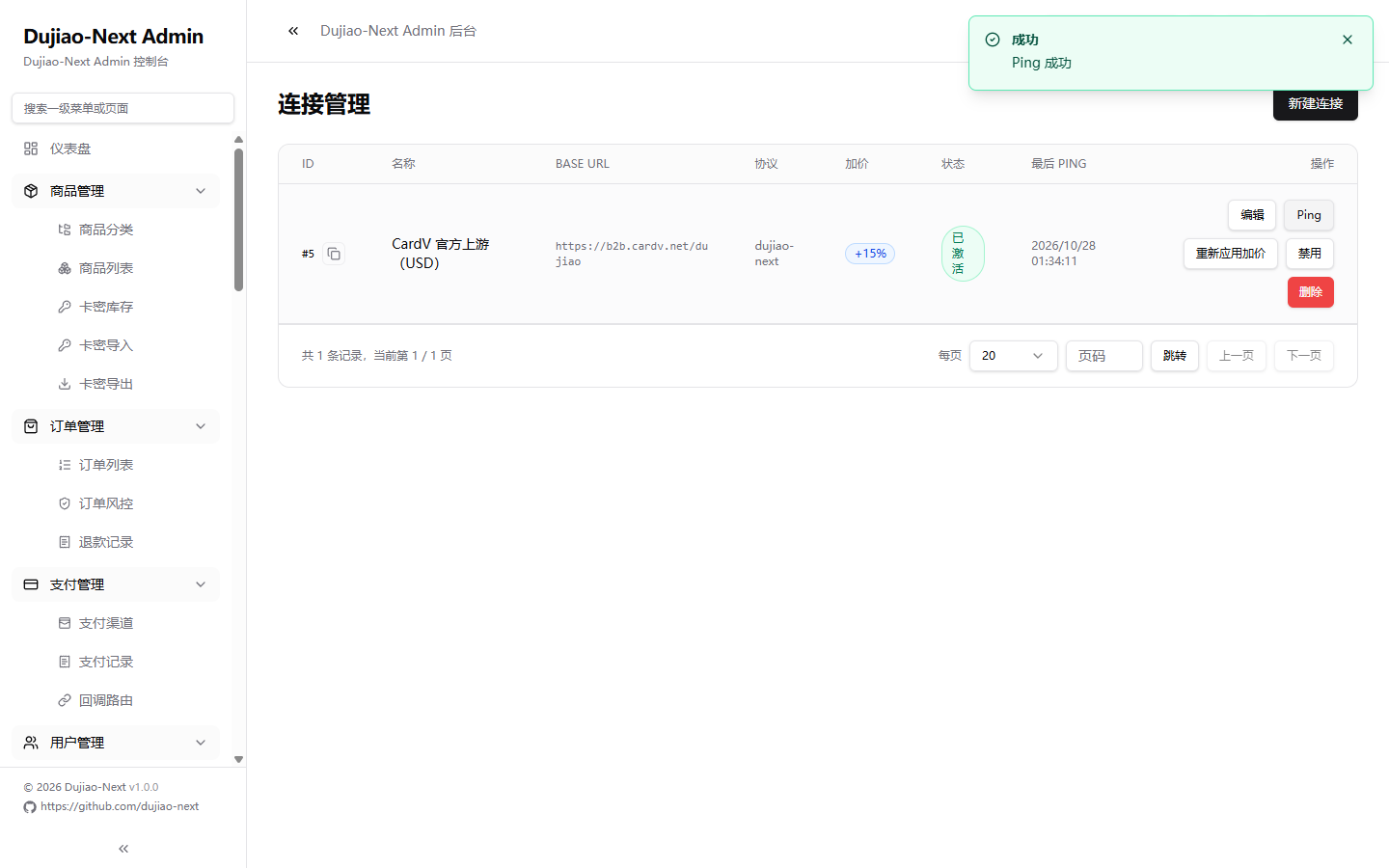
Click Ping on the connection. Ping succeeded means your key works, and the connection status changes to Active. If you see an error instead, see Troubleshooting.
#Step 4: Import products
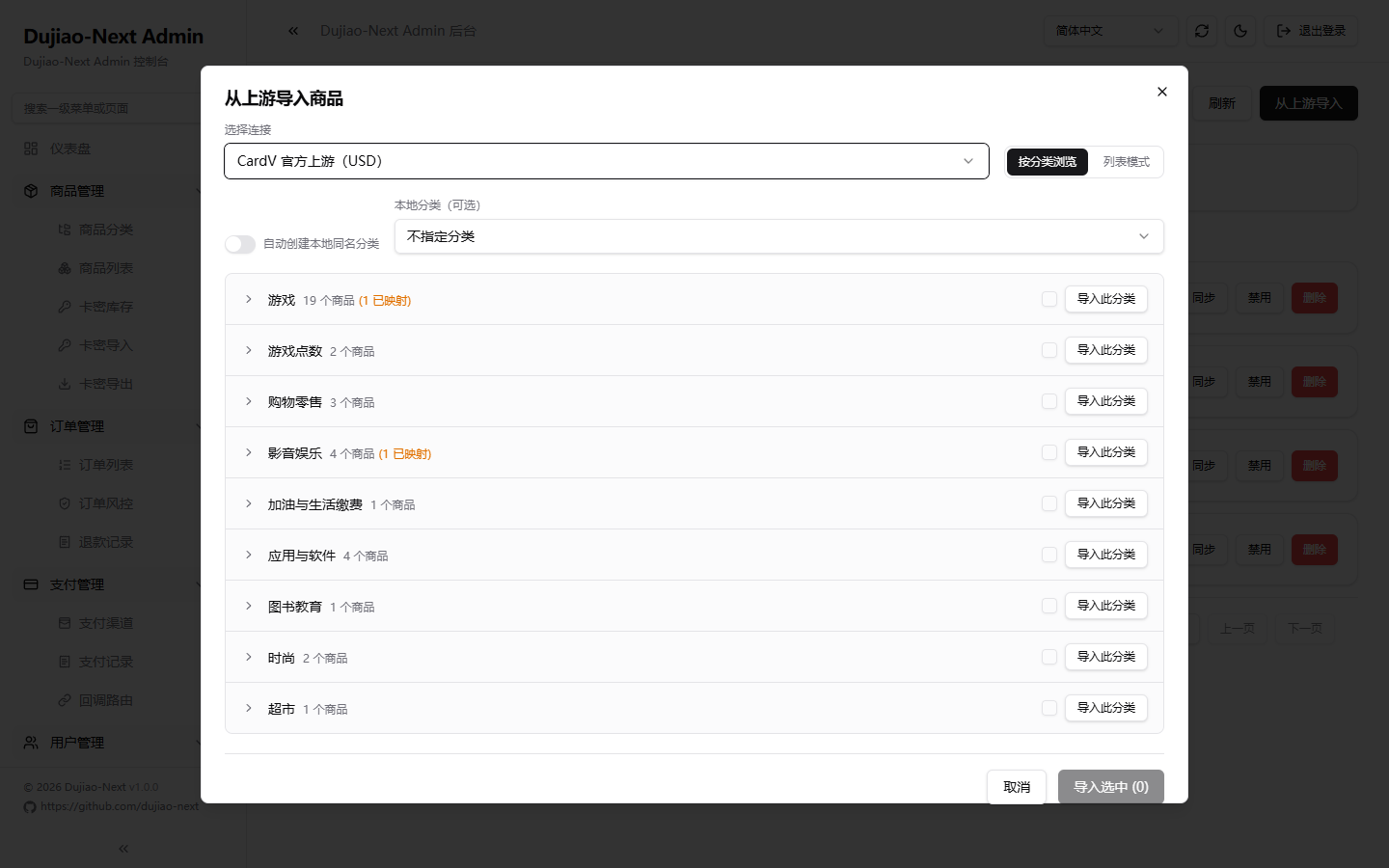
- Open Integration > Product Mappings > Import from Upstream and choose your CardV connection.
- Browse by category, or switch to Flat List to pick single products.
- Choose a local category, or tick Auto-create local categories. A product needs a category before you can save it.
- Import. Each product keeps its title, description, redemption instructions and face values (such as
10 USD).
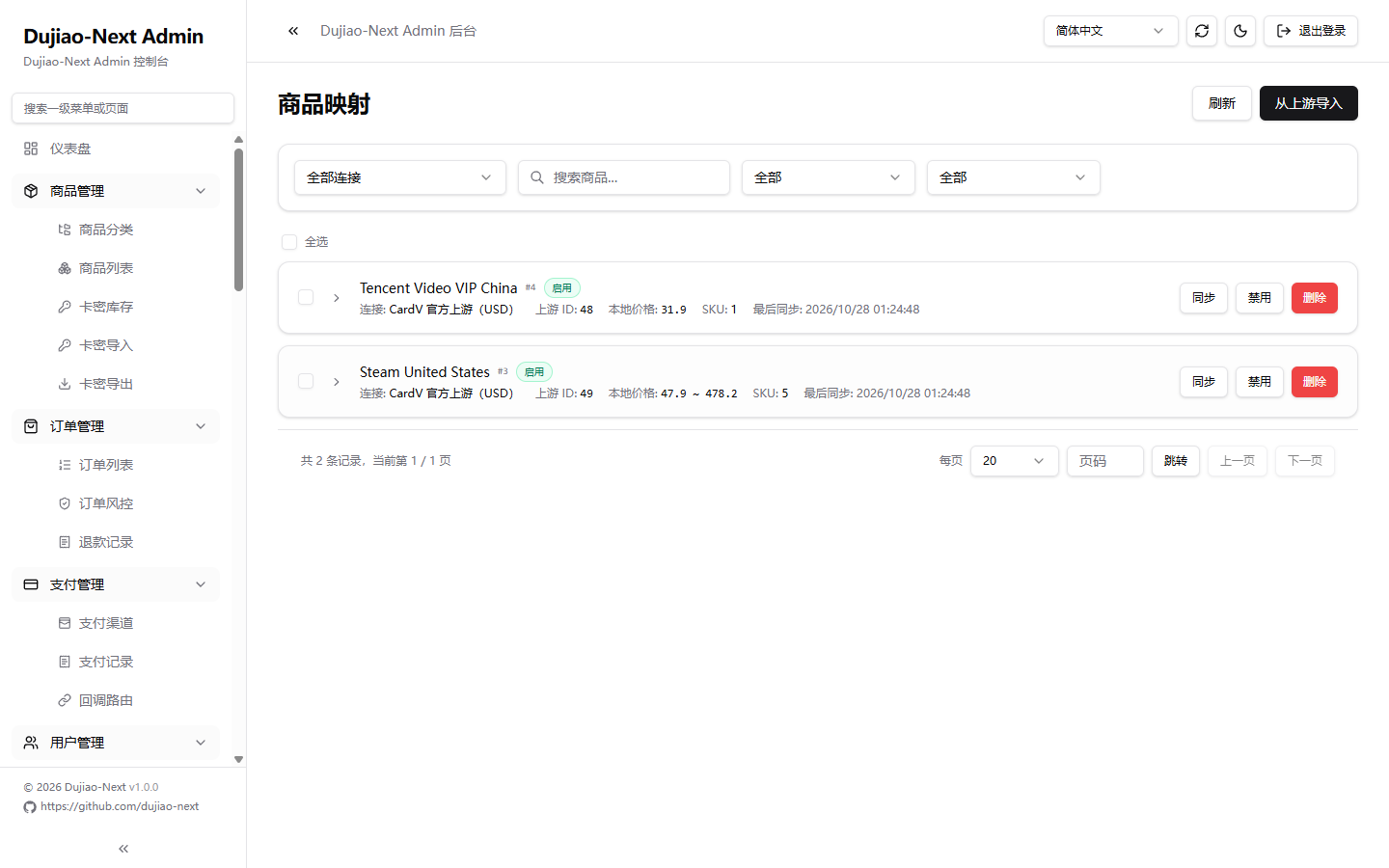
Imported products are off the shelf. Check each one, then turn on Active in the product editor.
#Step 5: Set one item per order
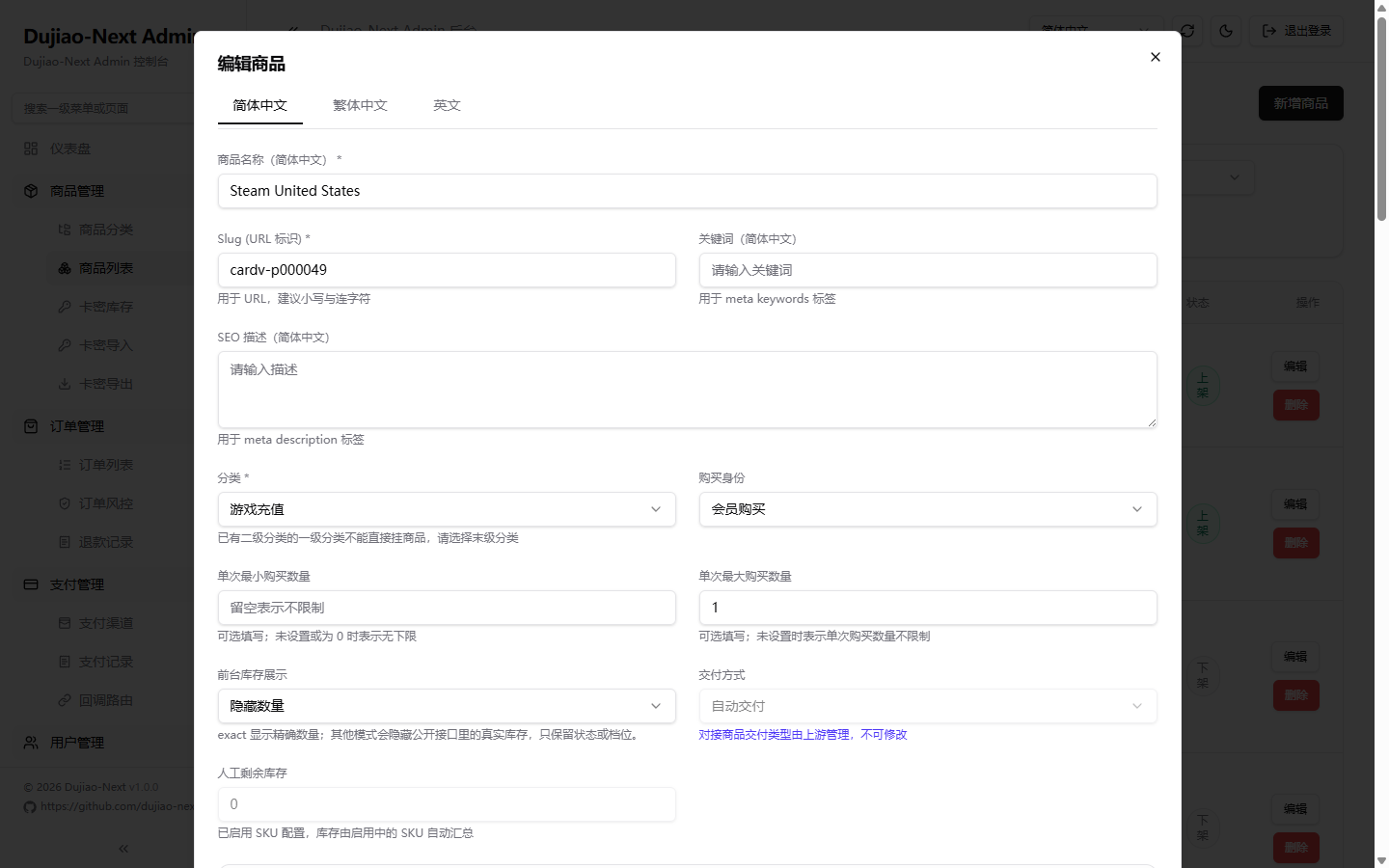
For every imported product, open the product editor and set Max purchase quantity to 1.
CardV fulfils one item per order. If a buyer pays for two codes in one order, CardV rejects the purchase and you have to sort out that order by hand. Dujiao-Next can't receive this limit from CardV automatically, so set it yourself.
While you are in the editor, we also recommend:
- Storefront stock display: choose Hide quantity. CardV buys from the brand when an order arrives, so the stock number your shop shows only means "available".
- Images: add your own if a product has none.
#How delivery works
- The buyer pays in your shop.
- Your shop sends the purchase to CardV, and CardV charges your CardV balance.
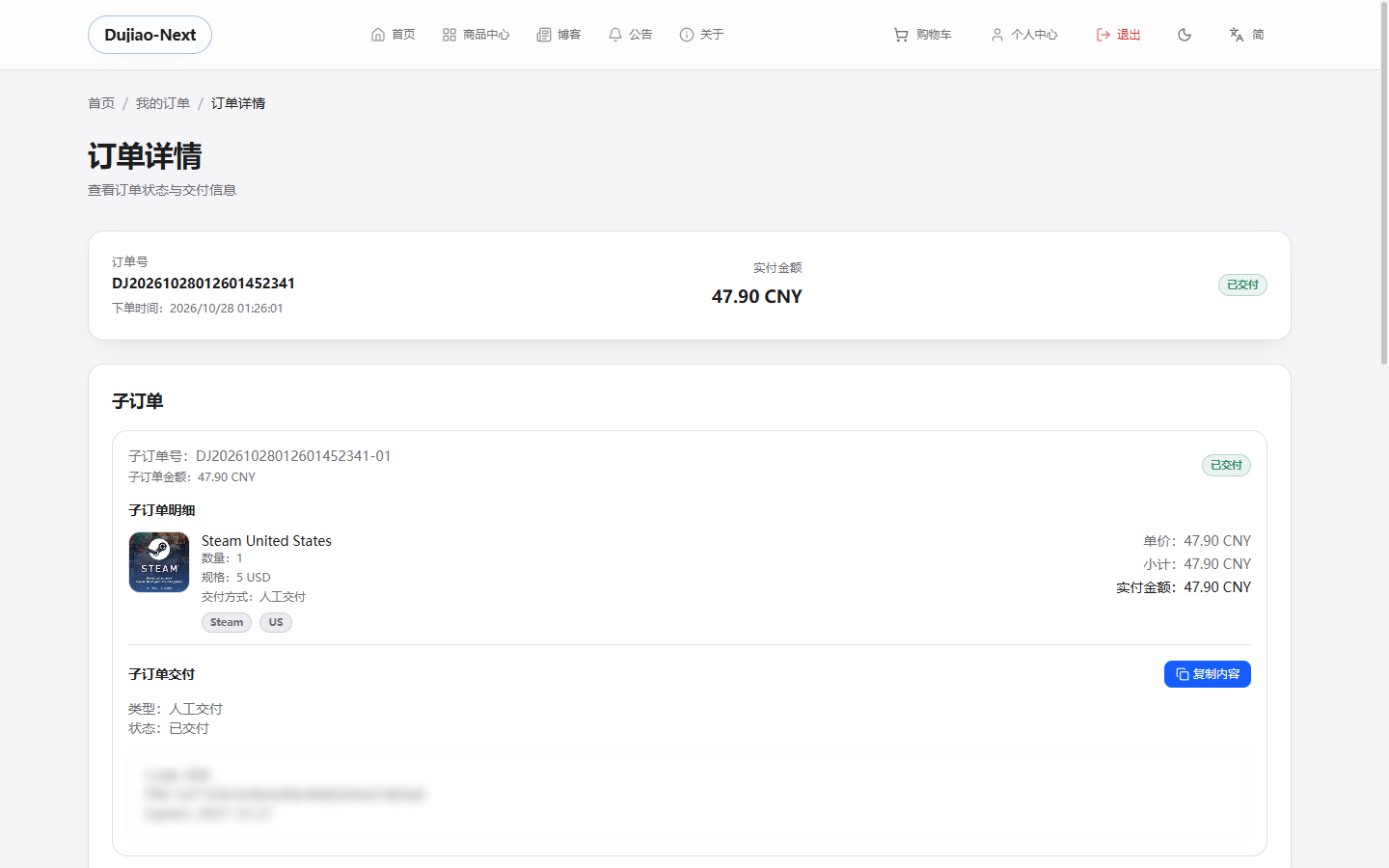
- Your shop checks the order at CardV. In our tests the code arrived within a minute.
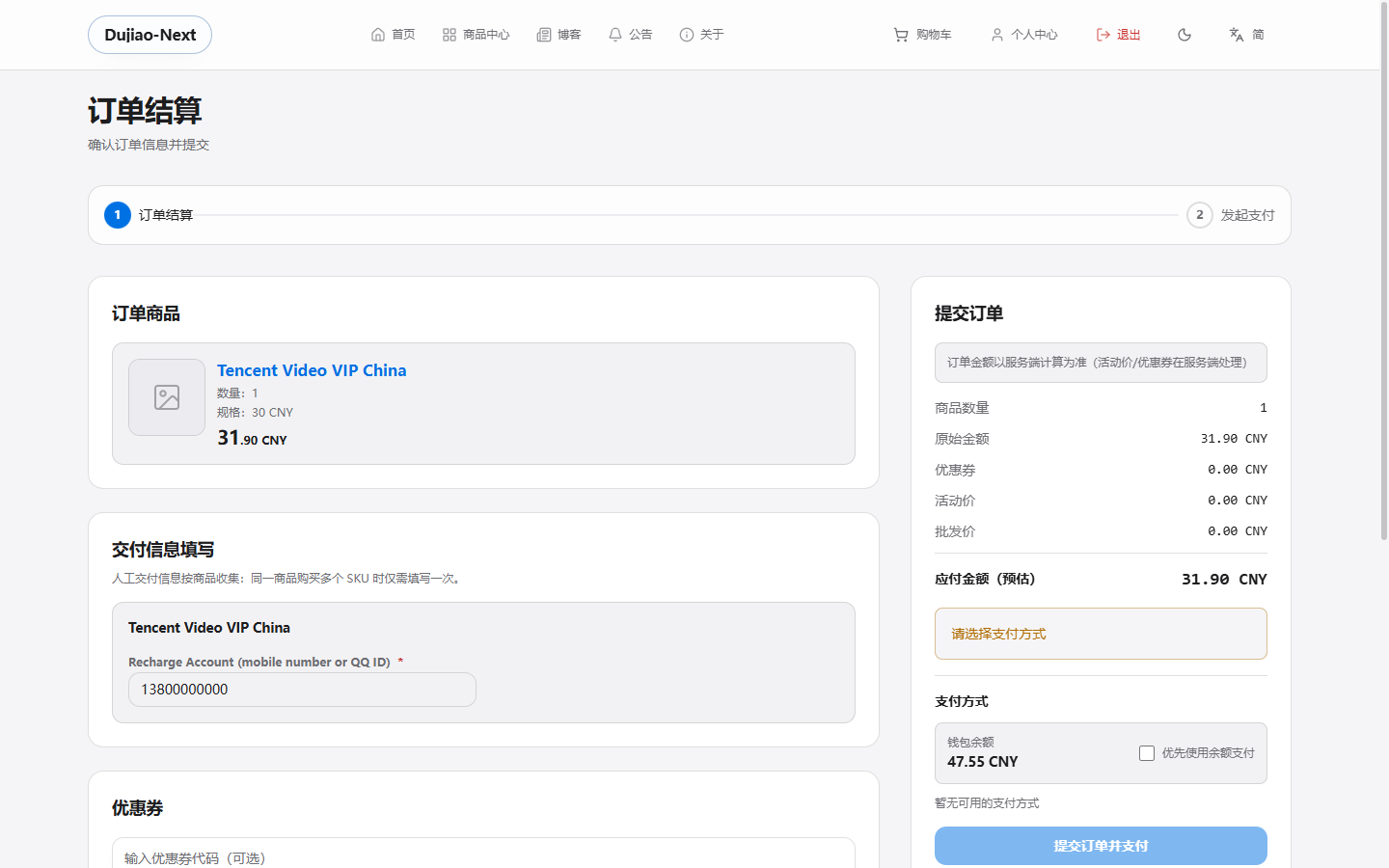
- The code appears on the buyer's order page as
Code,PIN(when the card has one) andExpires(when the card has an expiry date). It is always a code, never a link.
Direct top-ups. Some products are credited straight to the buyer's game or app account. At checkout the buyer fills in the details the product needs, such as a player ID or a phone number. When the top-up is done, the buyer's order page shows Top-up completed.
If CardV can't deliver. CardV refunds the order to your CardV balance, and your shop marks the purchase as cancelled. You then refund or help the buyer in your shop.
#What isn't available
The import list shows only products your shop can sell through this connection:
- Fixed face values only. Cards where the buyer types their own amount aren't listed.
- Not listed: mobile airtime top-ups, payment and wallet products, crypto, and prepaid payment cards.
- Codes only. Products that can only be delivered as a link aren't listed.
The prices you see are your own CardV prices in USD.
#IP whitelist
If you set an IP whitelist in the Merchant Portal, add the public IP address of the server that runs your Dujiao-Next shop. Otherwise CardV rejects every request from it. The same key, whitelist and request limits apply to the CardV API and to Dujiao-Next.
#Troubleshooting
You see these messages in the Dujiao-Next admin, after Ping, during import, or on a purchase in Procurement Orders.
| Message | Cause | What to do |
|---|---|---|
status 401 (invalid_signature): signature verification failed | The API Secret is wrong, or you regenerated it in the Portal | Copy the current signing secret into the connection |
status 403 (invalid_api_key): api key is invalid or disabled | The API Key isn't a Key ID (ck_live_…), or the key is disabled | Use the Key ID of an active key |
status 403 (user_disabled): merchant API access is not enabled | Your account isn't approved for API access yet | Complete the business review in the Portal |
status 403 (forbidden): source IP is not allowed for this merchant | Your IP whitelist doesn't include your shop's server | Add the server's public IP address in the Portal |
status 401 (timestamp_expired): timestamp expired | Your server clock is more than 60 seconds off | Turn on automatic time sync (NTP) on the server |
status 404 followed by a web page | The Base URL is wrong, usually missing /dujiao | Use https://b2b.cardv.net/dujiao |
CardV wallet balance is insufficient | Your CardV balance can't cover the purchase. The buyer's order stays paid | Top up your CardV balance, then click Retry on the purchase in Procurement Orders |
quantity must be 1: CardV accepts one item per order | A buyer ordered more than one item of a product | Set Max purchase quantity to 1 (Step 5), then handle the order by hand |
sku is invalid or not available | The product is no longer available from CardV | Run a sync on the mapping. Products CardV no longer offers go off the shelf |
status 429 (rate_limited) | Too many requests in one minute | Your shop retries on its own. Lower the sync frequency if it keeps happening |
#FAQ
Do I need a new API key for Dujiao-Next? No. Use the signed API key you already have. If you also use the key for your own CardV API integration, both share the same request limits.
Why do I leave the callback URL empty? CardV doesn't send callbacks to shops. Your Dujiao-Next shop checks each order on its own until the result is final.
What happens when CardV prices change? With Auto-update price on sync turned on, your selling prices are recalculated with your rate and markup at the next sync. With it off, your shop keeps selling at the old price.
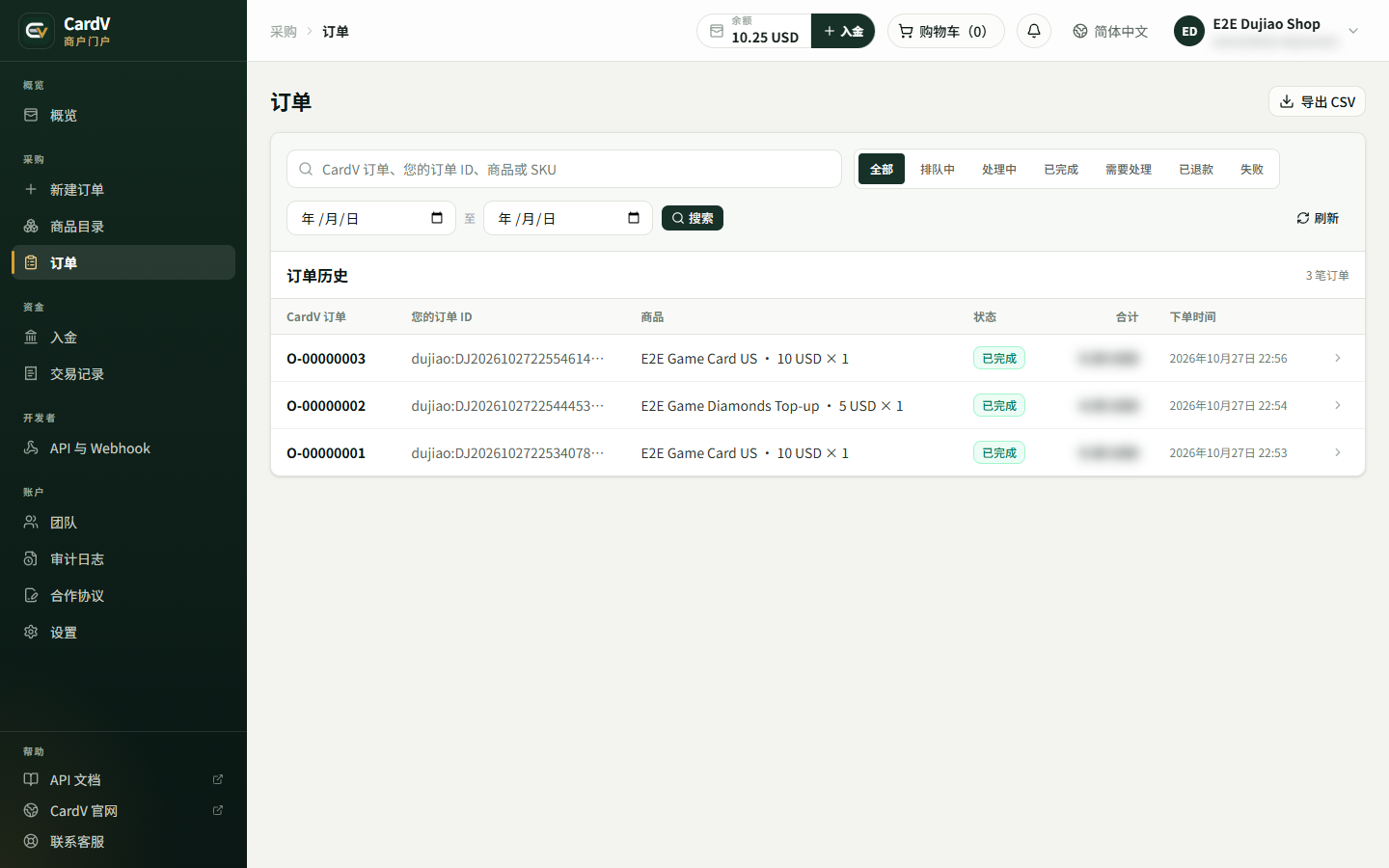
Where do I see these orders in CardV? On the Orders page of the Merchant Portal. The Your order ID column starts with dujiao: followed by the Dujiao-Next sub-order number (for example dujiao:DJ…-01). If you set up CardV webhooks, they also fire for these orders.
Can I change product titles, descriptions and images? Yes. Syncing updates prices and availability. It doesn't overwrite your titles or images.
Can I sell custom amounts? Not through Dujiao-Next yet. Only fixed face values are available.
#Support
Email [email protected] with your Merchant ID, the Dujiao-Next order number and the error message. Your use of CardV is subject to our Terms of Service.
Questions about your integration? Email [email protected] with your Merchant ID and the order or request ID.